Staff guide
How to Sync Records in ESO
Step-by-step guide to uploading patient care reports before the end of your shift.
All patient care reports (PCRs) must be synced to the ESO server before the end of your shift. Failure to sync may result in incomplete billing records and regulatory non-compliance. If you encounter any issues, follow the steps below and contact dispatch if problems persist.
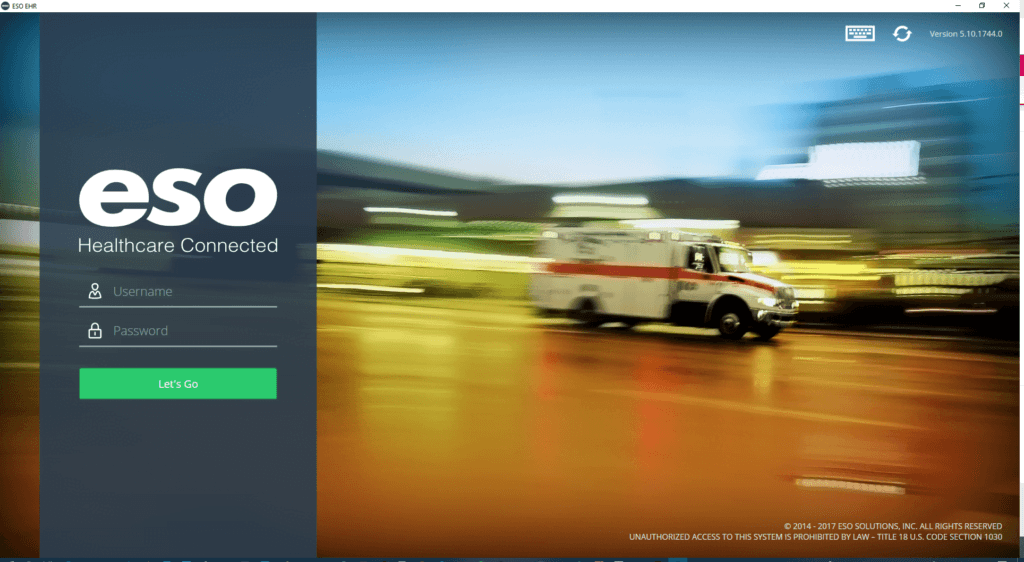
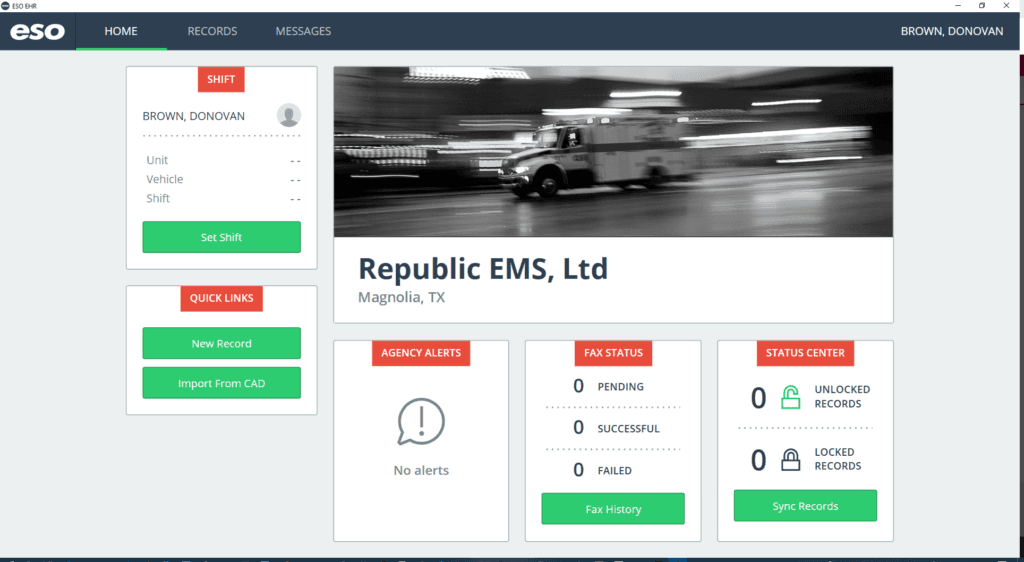
Open the ESO App
Open the ESO app on your tablet or device. Ensure you are logged in with your assigned credentials.
Tip: If you are not logged in, use your agency-issued username and password.
Go to Reports / PCR Section
Navigate to the "Reports" or "PCR" section from the main menu. This is where all your patient care reports are stored.
Tip: Look for the clipboard or document icon in the navigation bar.
Select the Completed Report
Find and select the patient care report you need to sync. Reports with a pending sync status will be clearly indicated.
Tip: Reports marked as "Draft" or "Pending Upload" need to be synced.
Tap "Sync" or "Upload" Button
Inside the report, locate and tap the "Sync" or "Upload" button. This initiates the upload process to the ESO server.
Tip: The button is usually found in the top-right corner or in the report actions menu.
Ensure Connectivity
Make sure you have an active WiFi or cellular data connection. A strong signal ensures a reliable and complete upload.
Tip: ESO requires at least 3G/LTE or WiFi for syncing. Avoid syncing on weak connections.
Wait for Confirmation
Wait for the sync confirmation message or progress indicator to complete. Do not close the app or lock your device during this process.
Tip: Sync times vary. A full PCR with vitals and signatures may take 15–60 seconds.
Verify "Synced" Status
After the upload completes, verify that the report shows a "Synced," "Uploaded," or green checkmark status in the report list.
Tip: If the status still shows "Pending," try the sync again after checking your connection.
Contact Dispatch if Sync Fails
If the sync continues to fail after multiple attempts, contact dispatch immediately for technical assistance.
Call Dispatch: 888-305-9967Still Need Help?
If you are unable to sync your records after following these steps, contact dispatch immediately so your report can be documented manually.
888-305-9967Available 24/7 — Dispatch Center